Twilio Integration
Configure Twilio for voice communication in Talkr AI
Overview
Twilio is a cloud communications platform that enables voice calling, messaging, and video capabilities. Talkr AI's Twilio integration provides seamless connectivity for your voice agents.
Prerequisites
Before setting up Twilio integration, you'll need:
- A Twilio account
- Account SID and Auth Token from your Twilio Console
- At least one Twilio phone number
- Talkr AI instance running and accessible
Configuration
Step 1: Get Twilio Credentials
- Log in to your Twilio Console
- Find your Account SID and Auth Token on the dashboard
- Navigate to Phone Numbers → Manage → Active Numbers
- Copy your phone number(s)
Step 2: Configure in Talkr AI
- Navigate to /telephony-configurations and click Add configuration
- Select Twilio as your provider
- Enter your credentials:
- Account SID
- Auth Token
- Click Save Configuration
- Open the configuration you just created and add at least one phone number (with country code, in E.164 format —
+then country code then number, no spaces or dashes, e.g.+1234567890). The default caller ID is used for outbound calls.
Step 3: Test Your Configuration
- Create a test workflow
- Click "Call" to verify connection
- Check call logs for successful connection
Inbound Calling Setup
Inbound routing is driven by the phone number itself — there is a single webhook URL for the entire org, and Talkr resolves which agent to run from the called number's assigned inbound workflow. When you save an inbound workflow on a phone number, Talkr automatically pushes the webhook URL to that number's VoiceUrl in your Twilio account (provided the credentials are correct and the number belongs to that account).
Step 1: Assign an Inbound Workflow to the Phone Number
- Go to /telephony-configurations and open your Twilio configuration
- In the Phone numbers section, edit the number that should receive inbound calls
- Set its Inbound workflow to the agent that should answer
- Save
Step 2: Verify the Webhook URL in Twilio Console
-
Go to Phone Numbers → Manage → Active Numbers in Twilio Console
-
Click the phone number you assigned an inbound workflow to in Step 1
-
In the Voice Configuration section, confirm:
- Webhook is set to:
https://talkr.intelstacks.com/api/v1/telephony/inbound/run - HTTP Method is
POST
Talkr pushed this URL automatically when you saved the inbound workflow in Step 1. If the field is empty, shows a different URL, or Talkr surfaced a sync warning, the auto-push failed — most often because the credentials are incorrect or the number isn't owned by this Twilio account. Paste the URL into the field yourself, set the method to
POST, and click Save Configuration. On self-hosted Talkr, replacetalkr.intelstacks.comwith your backend domain.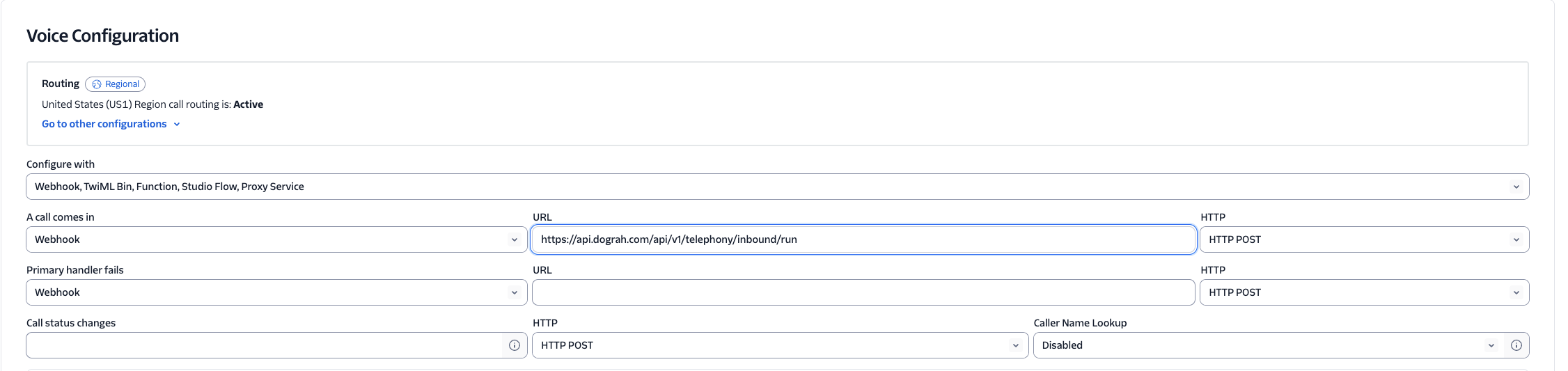
- Webhook is set to:
Step 3: Verify Setup
- Ensure your Talkr AI instance is publicly accessible
- Verify any firewalls allow Twilio's IP ranges
Test Inbound Calling
- Call your configured Twilio phone number from another phone
- Verify your Talkr AI voice agent answers and responds
- Check call logs in both Talkr AI dashboard and Twilio Console
Troubleshooting
Best Practices
- Test your configuration with a single call before running campaigns
- Monitor Twilio Console for usage and billing