Knowledge Base
Upload documents that your voice agent can reference during live conversations to provide accurate, context-aware responses.
The Knowledge Base lets you upload documents that your voice agents can reference during conversations. Instead of encoding all information into prompts, you can provide source documents and let the agent retrieve relevant content on the fly.
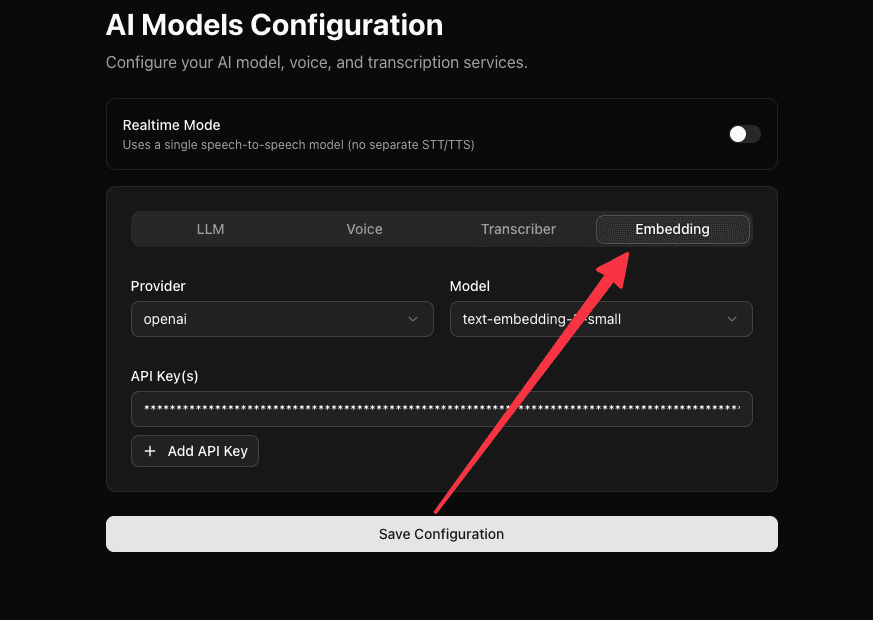
Chunked Search mode needs an embedding model, but you don't need to configure one yourself — Talkr's self-hosted default (intfloat/multilingual-e5-large, running in-process with no API key or external call) is pre-selected automatically for any organization that hasn't set up its own BYOK embedding provider. Full Document mode doesn't use embeddings at all.
Document processing (conversion and chunking) runs through Talkr's own self-hosted parsing pipeline (docling) — no external dependency to configure.
How It Works
- You upload a document (PDF, DOCX, TXT, or JSON) to the Knowledge Base
- You choose a retrieval mode — Full Document or Chunked Search
- Talkr processes the document based on the selected mode
- You attach the document to one or more workflow nodes
- During a call, the agent retrieves information from the document and uses it to generate accurate responses
Supported File Types
| Format | Extension |
|---|---|
.pdf | |
| Word | .docx, .doc |
| Text | .txt |
| JSON | .json |
Maximum file size: 5 MB
Uploading Documents
- Go to Knowledge Base Files in the dashboard
- Click Upload New or drag and drop a file
- Choose a retrieval mode (see below)
- Click Upload & Process — the document will be processed according to the selected mode
Retrieval Modes
When uploading a document, you choose how the agent retrieves information from it:
Full Document
The entire document text is provided to the agent whenever it queries the knowledge base. No chunking or embedding is performed.
Best for: menus, price lists, FAQs, short reference sheets, and any document where the agent needs access to all the information at once.
Chunked Search
The document is split into smaller chunks and indexed with vector embeddings. When the agent queries the knowledge base, only the most relevant chunks are returned.
Best for: large documents like policies, manuals, or contracts where only a portion is relevant to any given question.
Collections
Documents live in collections — named groups like "Product Docs", "Pricing", or "Returns Policy". Every organization starts with a Default collection, and anything you upload without choosing one lands there.
Collections do two jobs. They keep a growing library navigable, and they let each agent draw on only the material that's relevant to it, rather than every document your organization has ever uploaded.
Managing them
On the Knowledge Base Files page you can create a collection, rename one, edit its description, or delete it. Each shows how many documents it holds.
Two deletions are refused, both deliberately:
- A collection that still has documents. Talkr won't silently move your documents somewhere else or delete them along with it — empty the collection first, so it's your decision where they go.
- The Default collection. It's where uploads land when no collection is chosen, so it always has to exist.
Renaming is always safe: agents reference a collection by its identity, not its name, so a rename never detaches anything.
Giving an agent its own shortlist
As your library grows, most agents only ever need a fraction of it. You can narrow what a given agent offers you when you're building it:
- Open the agent and go to Settings
- Find Knowledge Base Collections
- Tick the collections this agent should draw on
From then on, the document picker inside that agent's nodes shows only documents from those collections — so a support agent isn't scrolling past your pricing library to find a returns policy.
Leave nothing ticked and the agent offers every document in your organization, which is the default. Changing the selection never detaches documents already attached to a node; it only changes what the picker offers next time.
Attaching Documents to Nodes
Once a document is processed, you can attach it to any Start Call or Agent node in your workflow:
- Open the node edit dialog
- Scroll to the Knowledge Base Documents section
- Select one or more documents for the agent to reference
The agent will only search documents attached to the current node, so attach only the documents relevant to that conversation step.
Reducing Hallucinations
Your agent won't guess at specifics it can't confirm from your documents. When it looks something up, it only answers with what was actually found — if nothing relevant comes back, or what comes back doesn't actually answer the question, it says it doesn't have that information instead of making something up. Weakly-related matches are filtered out automatically before they ever reach the agent, so a vague or unrelated document can't get pulled in as if it were the answer.
This is part of Talkr's built-in Guardrails and applies automatically — there's nothing to configure.
Best Practices
- Use Full Document for small reference files — menus, price lists, and FAQs work best when the agent sees the entire document
- Use Chunked Search for large documents — policies, manuals, and contracts are too large to fit in context, so chunked retrieval finds the relevant sections
- Keep documents focused — a single topic per document produces better retrieval results than a large multi-topic file
- Use clear, structured content — headings, lists, and short paragraphs help the chunking process
- Attach selectively — only attach documents relevant to a specific node rather than attaching everything everywhere
- Keep documents up to date — re-upload when source information changes to avoid stale answers